
 By
Ben Khalesi
Published 3 minutes ago
By
Ben Khalesi
Published 3 minutes ago
Ben Khalesi covers the intersection of artificial intelligence and everyday tech at Android Police. With a background in AI and data science, he enjoys making technical topics approachable for those who don’t live and breathe code. Ben is currently based in Sydney and has four years of professional writing experience across technology and digital industries. Outside work, he enjoys traveling, bouldering, and playing the latest AAA games.
Sign in to your Android Police account Summary Generate a summary of this story follow Follow followed Followed Like Like Thread Log in Here is a fact-based summary of the story contents: Try something different: Show me the facts Explain it like I’m 5 Give me a lighthearted recapI have a confession to make, and if you’re reading this, you probably share it. I had a doomscrolling problem.
The second I felt even a hint of boredom, my hand would reach out, my thumb would swipe. I’d get sucked into the endless feed, losing minutes, sometimes even hours, without realizing it.
But to be fair, the game is rigged. Modern smartphones are designed precisely to give us fast bursts of validation and distraction.
The system’s designed to feed this “wanting” loop with colors, animations, and new notifications to keep that seeking impulse alive. The only way to win is to introduce friction.
When Android 16 landed, I wasn’t focused on the chip upgrades or battery gains. By repurposing four features, I took control of my phone, and here’s how you can do it too.
Removing color and animation to break the scrolling spell
 Credit: Lucas Gouveia / Android Police
The very first and most radical thing I did was switch my phone to Grayscale Mode. This idea is rooted in behavioral science. Our brains crave color because it signals reward.
Apps like Instagram and Twitter use bright, attractive colors to keep us hooked, always searching for the next eye-catching post. Taking away that color reward basically dulls the phone’s appeal.
Grayscale technically belongs to the Digital Wellbeing & parental controls and is meant to kick in during Bedtime Mode to help you relax at night, but the trick is to set it so it’s always on or activates automatically throughout your workday.
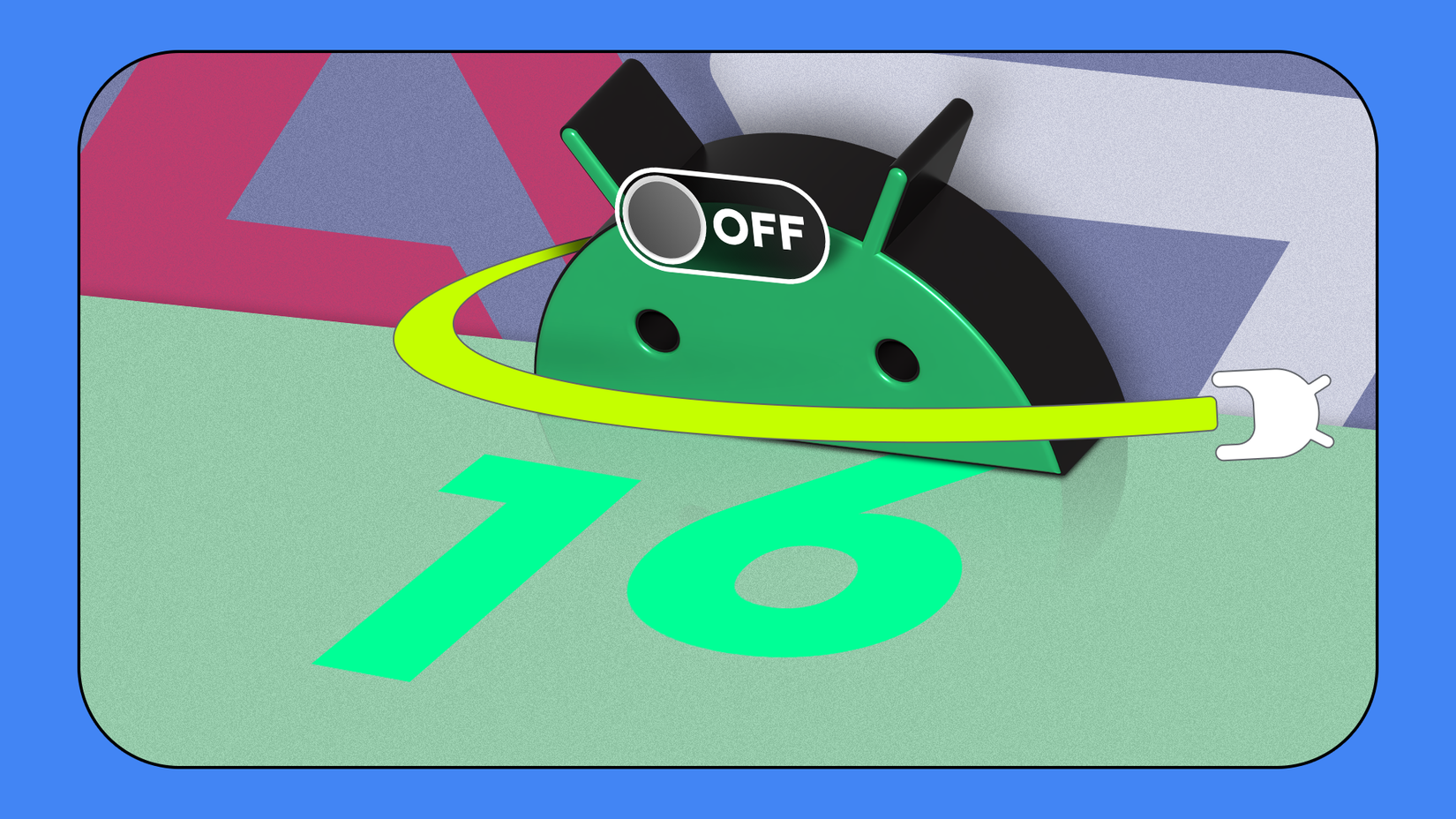
My next target was the animations.
The default 1.0x animations are also part of the charm. So I went into one of the Android Developer Options. Three animation controls affect how fluid the phone feels.
- Window animation scale controls the speed of apps and pop-up windows.
- Transition animation scale controls the speed of movement between home screen panels and within apps.
- Animator duration scale controls the speed of general UI animations, such as opening and closing apps.
I set all three animation values to 0. This removes UI animations, which makes the phone feel less fluid and visually engaging.
The effect hit me right away. My scrolling sessions got way shorter, and I wanted to put my phone down faster.
Limiting home screens and adding a pause reduced my phone use
 Credit: Justin Ward / Android Police
The biggest productivity killer is the zero-effort tap. If opening an addictive app is just one tap away, the habit becomes automatic in no time. So I introduced a behavioral barrier.
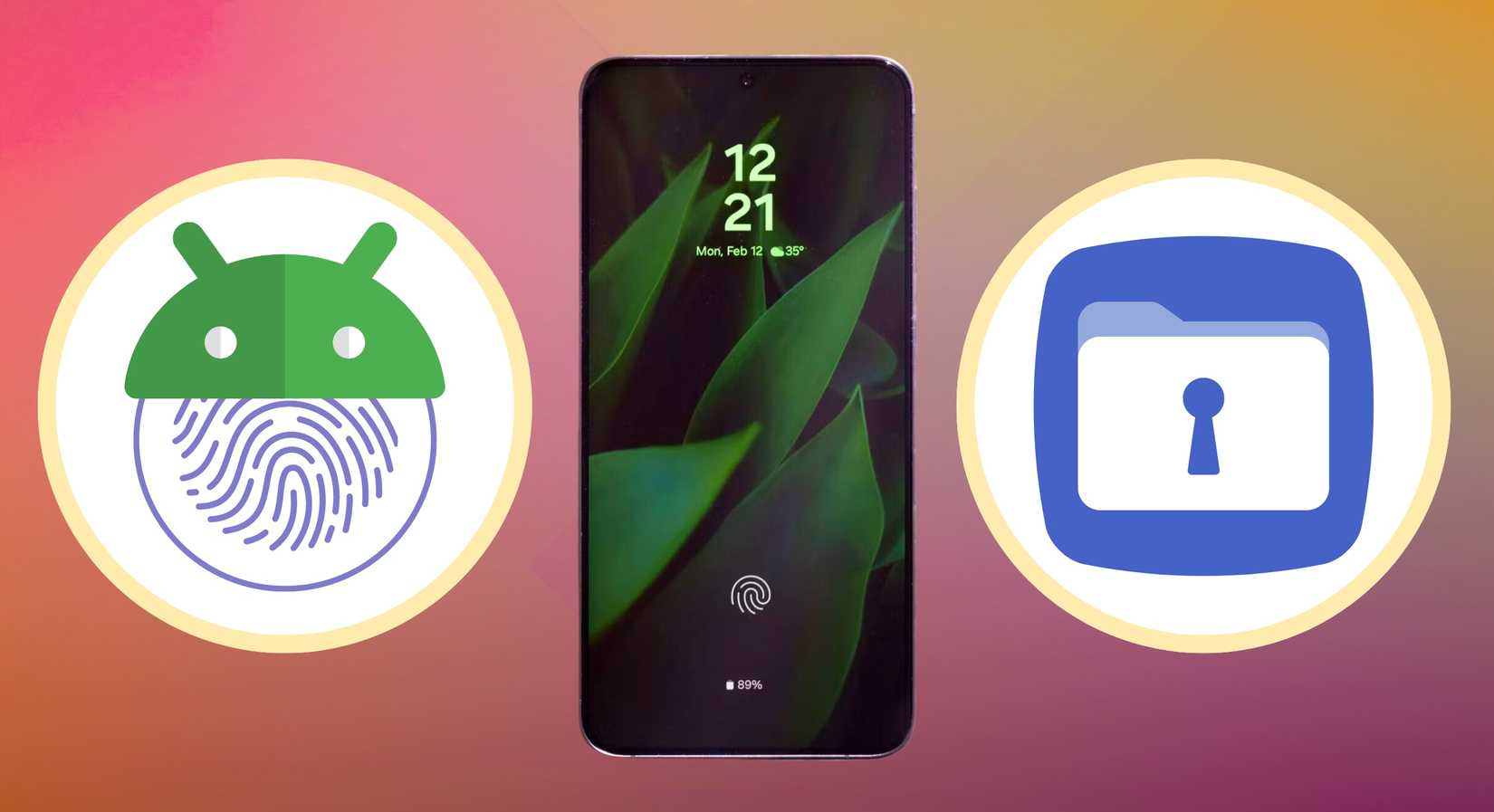
Android’s Private Space (or Samsung’s Secure Folder) is designed to keep your private data safe, but I use it to quarantine my impulses.
What I did was move all my digital junk food — Reddit, Instagram, endless news apps — into Private Space, set up to require a separate login, like a fingerprint or second PIN.
Plus, Private Space lets me fully control notifications. Apps inside can be set to go completely silent when the folder’s locked, getting rid of the noise from distracting apps.
I also stick to a strict single-page home screen. The Private Space makes it easy to dedicate this main screen just to the essentials.
I force myself to open all non-essential apps through the app drawer and Private Space. These tweaks work hand-in-hand with Grayscale.
If you do get past the biometric barrier (Behavioral Friction), you’re immediately faced with the dull, black-and-white interface (Visual Deprivation). This two-layered defense makes it costly to access and less rewarding to stay in.
Managing notifications without missing what matters
 Credit: Lucas Gouveia / Android Police | Evgenia Vasileva / Shutterstock
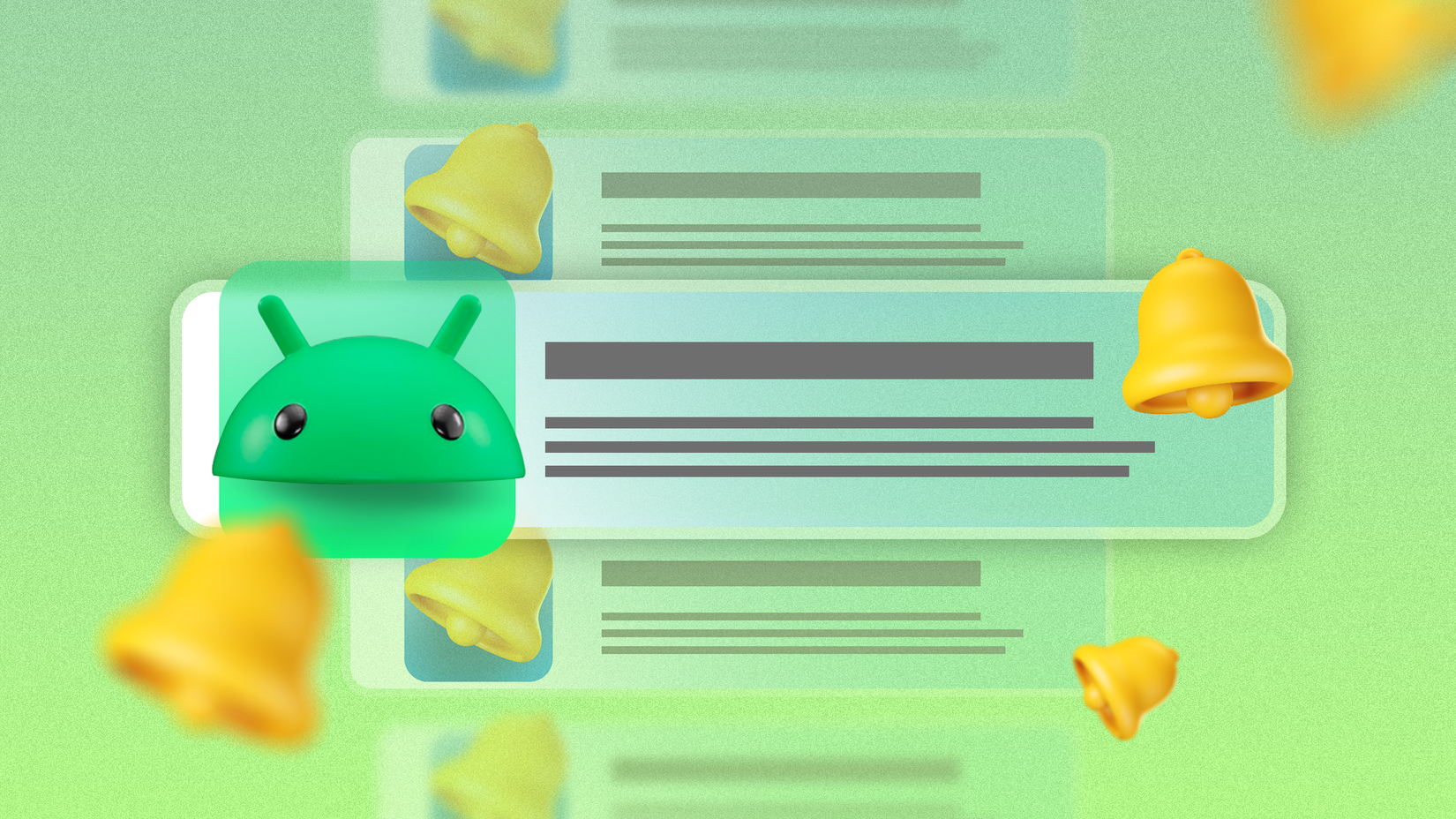
The final part of beating distractions was dealing with the nonstop alerts from the OS. Every “ding” pulls you away from what you’re doing.
Android 16 brought the tools needed to actually solve this issue.
Google introduced Live updates for anything that has a clear start and end, like tracking your Uber or a food delivery. High-priority notifications get prime placement in the notification shade.
This small design change basically permitted me to lock down all my other notifications. Now I can mute or schedule the low-value stuff without stress. Anything that actually matters still pops up, and I don’t even have to unlock my phone.
I also switched the display style for heads-up notifications to Compact mode. The big, in-your-face banner is immediately downgraded.
Rather than covering a chunk of your display, it turns into a tiny pill. You still see what you need to see, but it doesn’t yank you out of whatever you’re doing.
Journey to a healthier phone habit
If you’ve followed along, you’ve now tackled the main weak spots that make smartphones so distracting. After I put these systems in place, the difference was clear. I felt less stress, and my sleep improved a lot.
I’m no longer lying awake, scrolling through whatever random thing pops up on social media. I hope these changes work for you, too.
I get that they can feel radical, and you’re definitely not supposed to hate your phone. But trying them out for a while feels like a detox. After your willpower builds up, you can ease them out slowly.
-
 Operating Systems
We want to hear from you! Share your opinions in the thread below and remember to keep it respectful.
Be the first to post Images Attachment(s) Please respect our community guidelines. No links, inappropriate language, or spam.Your comment has not been saved
Send confirmation emailThis thread is open for discussion.
Be the first to post your thoughts.
- Terms
- Privacy
- Feedback
 3 days ago
How to make use of your Samsung's Now Bar on the lock screen and AOD
 4 days ago
5 surprising ways I use Google Maps that have nothing to do with navigation
 2 days ago
Why the Google Pixel 10 Pro Fold convinced me to abandon my iPad for good
 2 days ago
Google quietly confirms when it's pulling the plug on Assistant
Trending Now The wait will soon be over for One UI 8.5 beta on Galaxy S25
 How to make a widget-sized folder on your Samsung phone
 This is the Google TV streaming device that costs just $9

